
Sales
A sale goes in order: quote, order, goods issue and invoice. You make each document from the one before it with Convert. Thus you do not type the lines again.
All the documents are in the Sales module: Quotes, Sales orders and Invoices. The goods issues are in the Inventory module, under Goods issues.
The status of a document
Section titled “The status of a document”Each document shows its status next to its number:
- Unconfirmed: you can change and delete the document.
- Confirmed: the document changes the stock and the accounts. Only a confirmed document can be converted.
- Locked: the document is converted or posted. You can only read it.
- Cancelled: you can only restore the document with Restore.
To change a confirmed document, click Unconfirm first.
A quote shows the buyer the items and the prices.
What you need: the buyer in Partners and the goods in Items.
- Open Sales, then Quotes.
- Click New.
- In Partner, choose the buyer.
- Check the Date and the Due date.
- Click New line.
- Choose the Item, type the Quantity and check the Price excl. VAT.
- Click Add line. The window stays open for the next line.
- When all the lines are in, click Cancel to close the window.
- Click Save.
- Click Confirm.
What you see next: the quote has a number and the status Confirmed. With Preview PDF you see it and print it.
From a quote to an order or an invoice
Section titled “From a quote to an order or an invoice”- Open the confirmed quote.
- Click Convert.
- Choose Sales order or Invoice.
- Posto asks “Create … from this document?”.
- Click Convert and open. If you click Convert, Posto makes the new document and you stay on the quote.
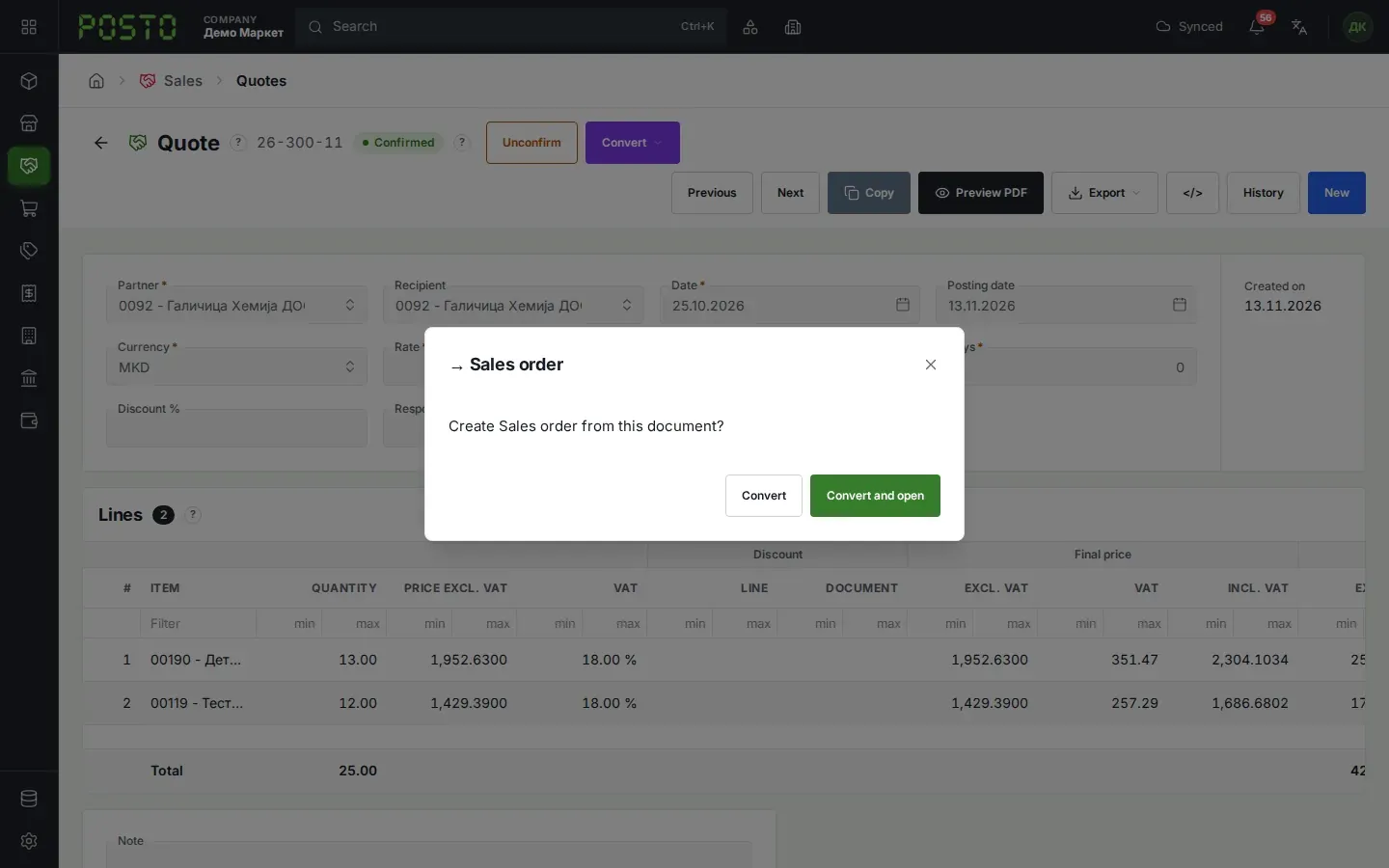
What you see next: the new document opens with the same lines. Below the buttons, the Source: strip shows the number of the quote. The quote is now Locked: converted.
Common problems: Posto shows Sales order only when the quote has goods. A quote with only services goes directly to an invoice.
Sales order
Section titled “Sales order”The order keeps the goods for the buyer.
- Open the order (from the quote, or with New in Sales orders).
- Check the lines and click Save.
- Click Confirm.
- Posto opens the Pick storage window. Choose the Storage that the goods go out from.
- Check the Stock column and click Save.
What you see next: the order is Confirmed. The Convert button shows Goods issue and Invoice.
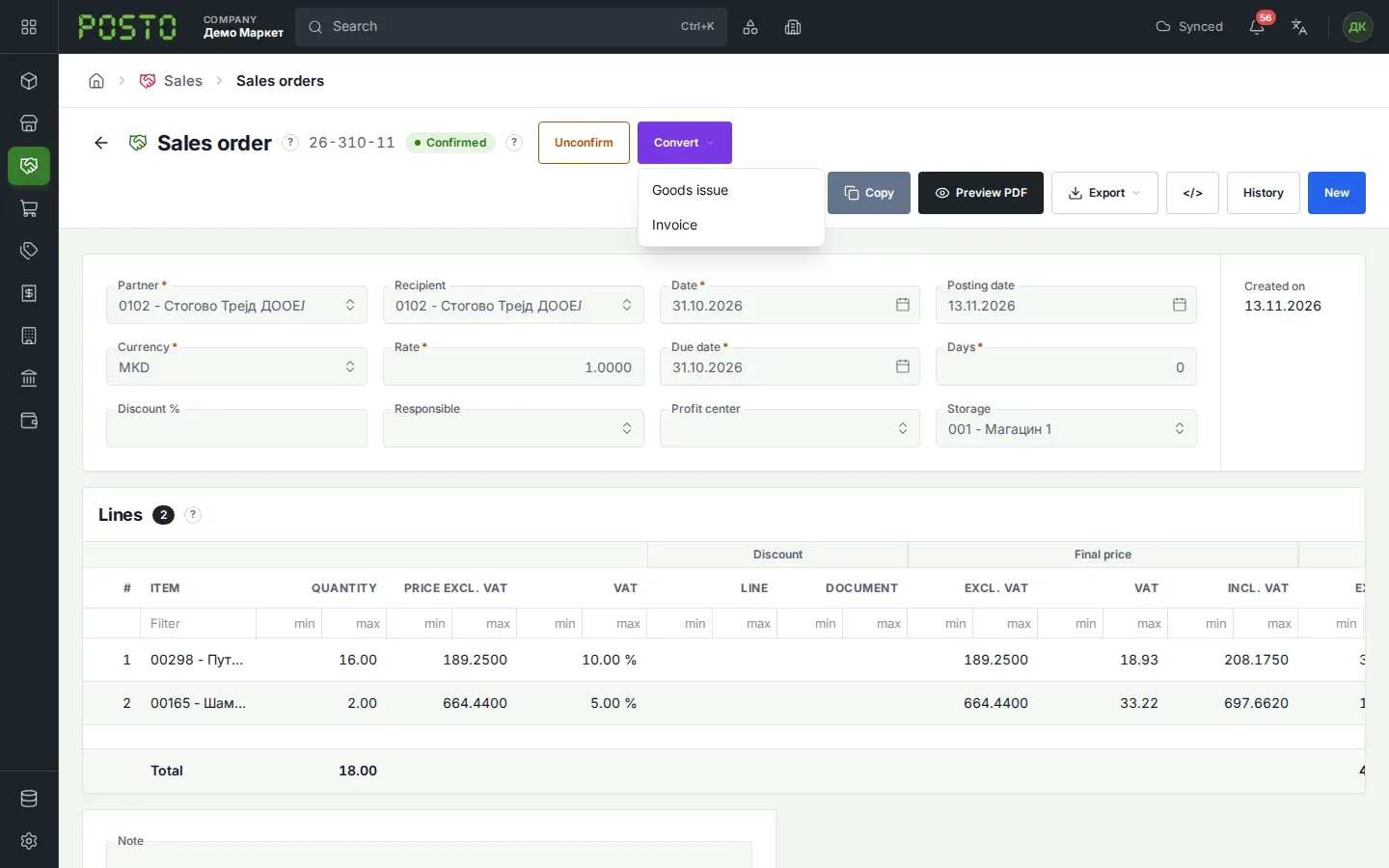
Common problems: a red line and the message “Not all products have stock in the selected storage” mean that the stock is too low. Change the quantity or the storage.
Goods issue
Section titled “Goods issue”The goods issue takes the goods out of the storage.
- On the confirmed order, click Convert, then Goods issue.
- Click Convert and open.
- Check the Delivery address and the quantities.
- Click Confirm.
What you see next: the goods issue is Confirmed. The stock in the storage is lower.
Common problems: if there is not enough stock, the goods issue does not confirm. This does not apply to a company that has Allow negative stock selected on the Company screen.
Invoice
Section titled “Invoice”- On the order, click Convert, then Invoice.
- Click Convert and open.
- Check the lines, the dates and the Due date.
- Click Confirm.
What you see next: the invoice is Confirmed. The order is Locked: converted.
Common problems:
- The message “No confirmed goods issue.”: first make and confirm the goods issue of the order. Then make the invoice.
- An invoice with goods that you make yourself (without an order) also needs a confirmed goods issue. On the invoice, click Convert, then Goods issue. Confirm the goods issue, then confirm the invoice.
The connections strip
Section titled “The connections strip”Above the fields of each connected document, there is a strip of connections:
- Source: the document that this document was made from.
- Created: the documents made from this document.
- Related: other documents for the same work, for example the Journal that posts the invoice.
Click a document in the strip to open it. Thus you go forward and back through the whole sale.
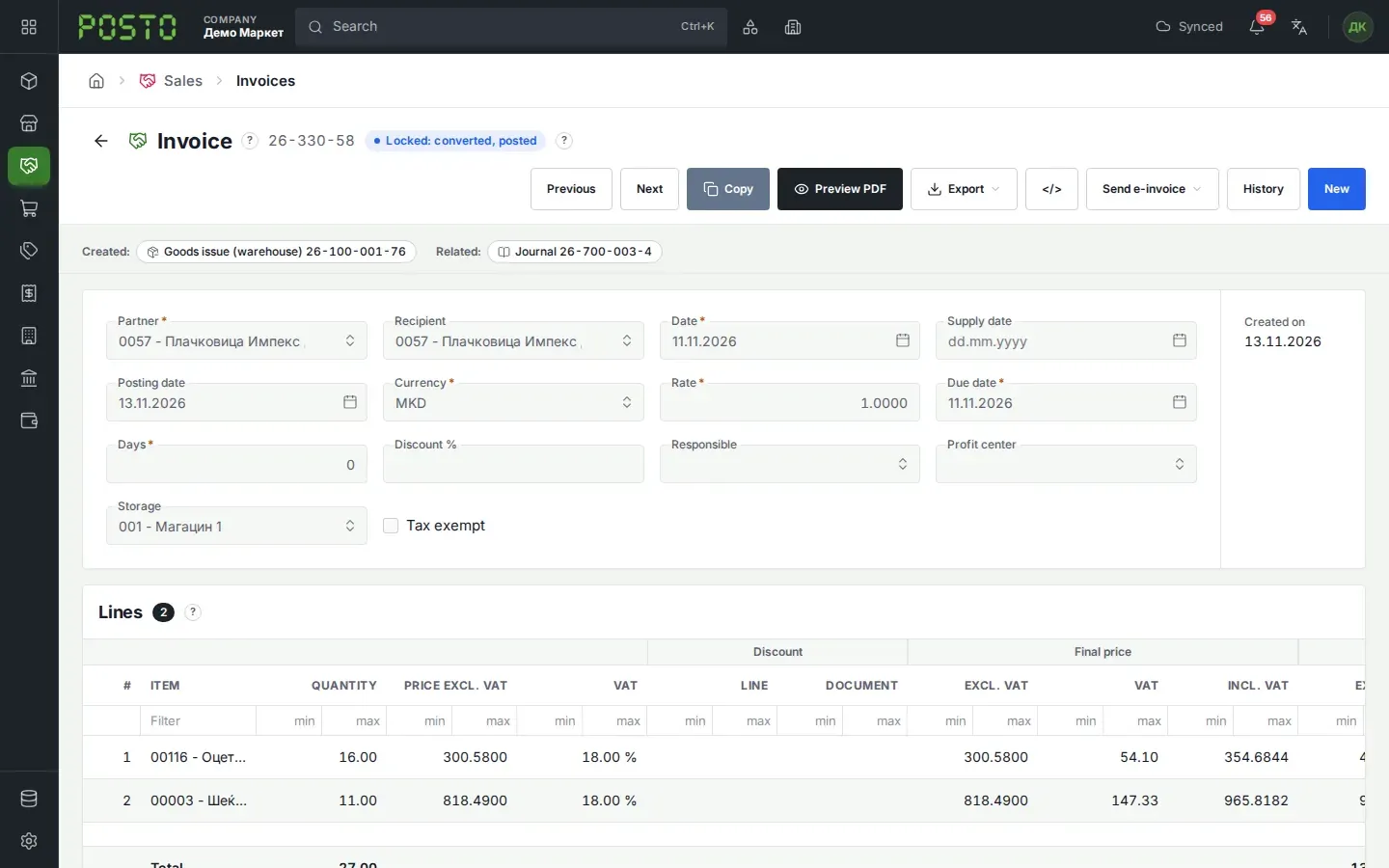
In a list of documents, the Connections column shows how many documents each document is connected to.