
Help
What’s new
Section titled “What’s new”In “What’s new” you read the changes in each version of Posto.
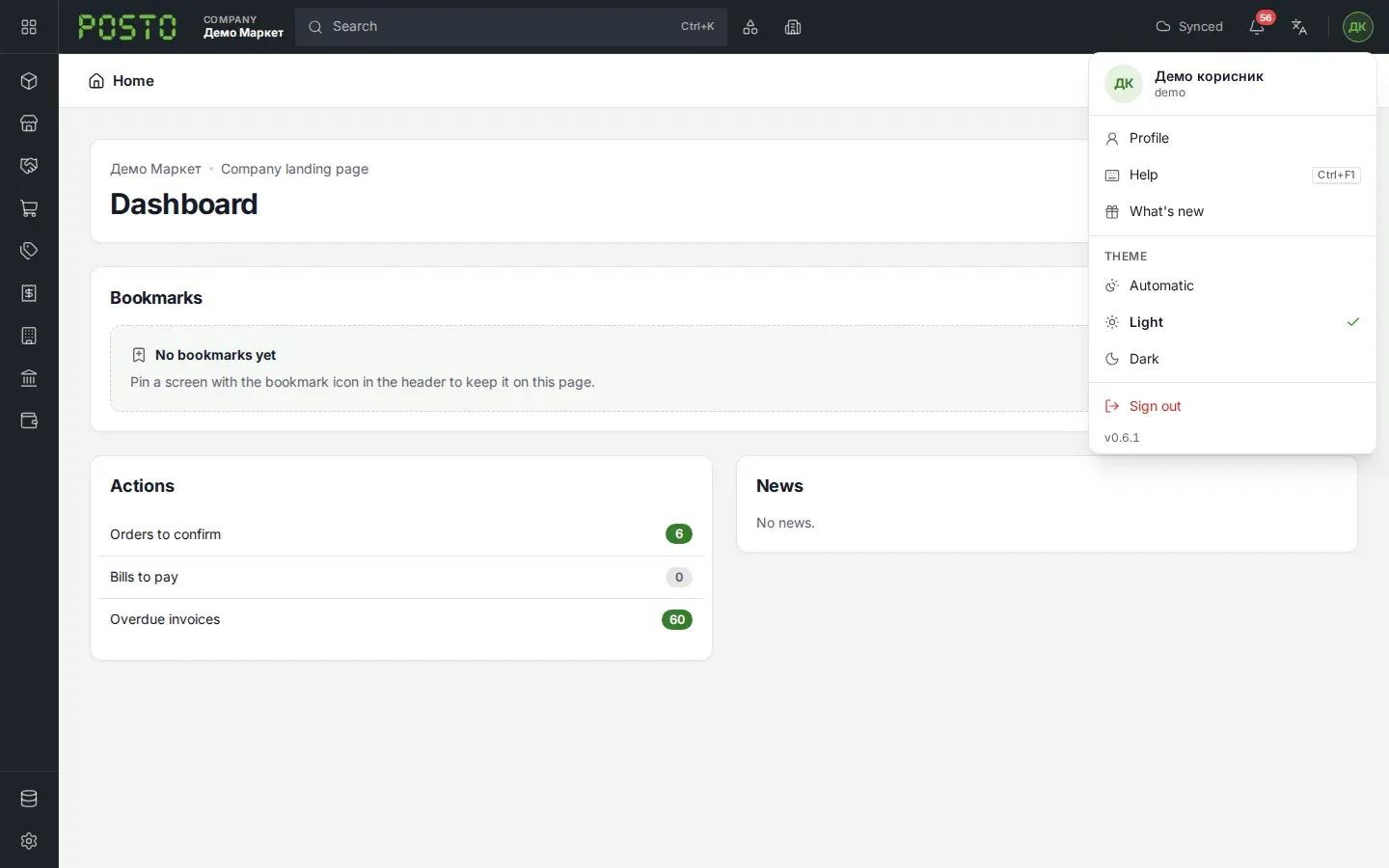
- Click your initials at the top right.
- Click What’s new.
What you see next: the What’s new window with the versions, the newest first. Each version shows its date and the list of changes.
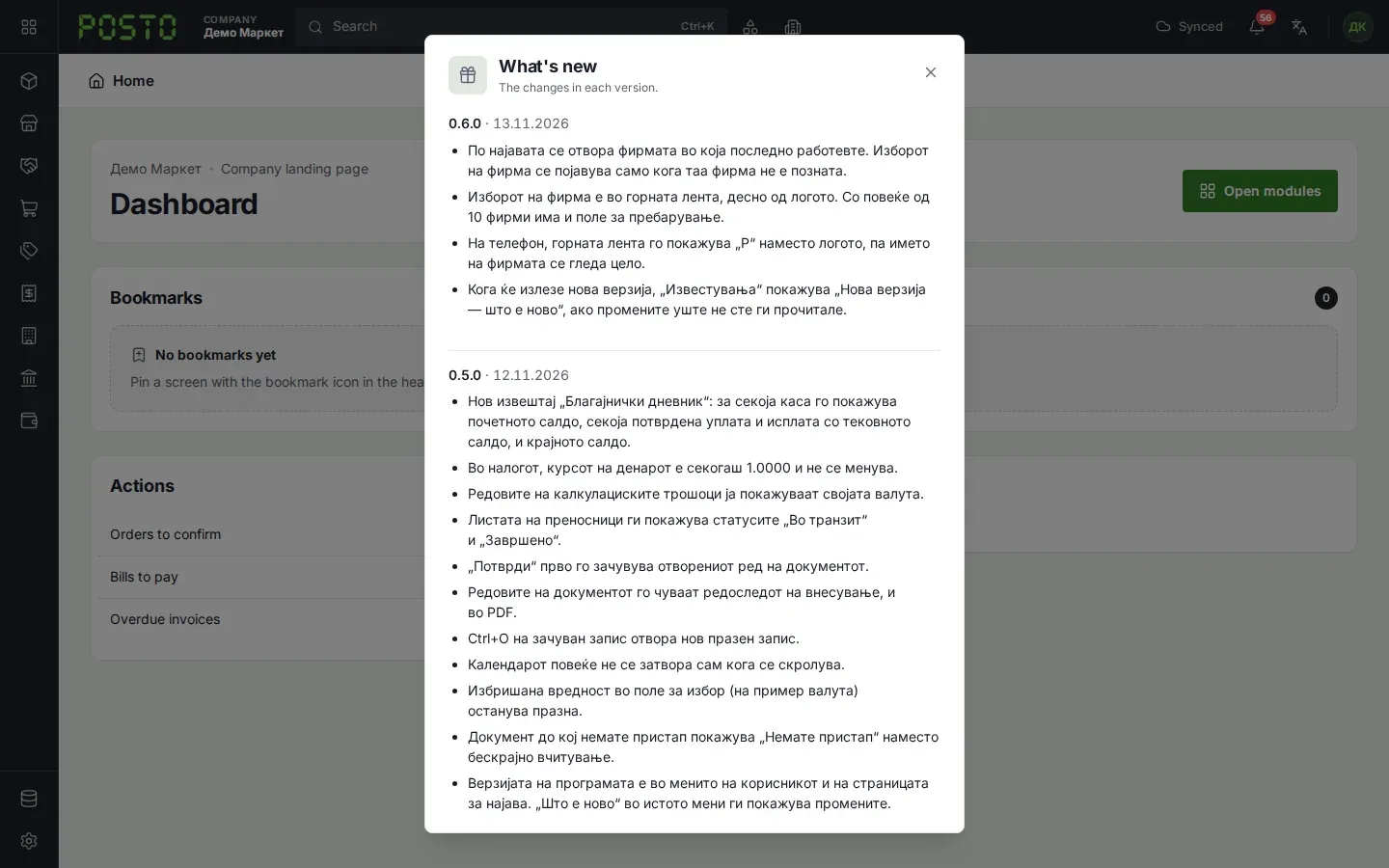
After a new version, “What’s new” opens by itself one time. Until you read the changes, Notifications (the bell) shows “New version … — what is new”.
Which version you use
Section titled “Which version you use”The version number is in two places:
- At the bottom of the menu under your initials, for example v0.6.1.
- Under the Sign in button on the sign-in page.
When you tell someone about a problem, also give the version number.
Help on the screen
Section titled “Help on the screen”- The ? button next to the title of a screen tells what the screen does and what the statuses mean.
- Help in the menu under your initials (or Ctrl+F1) shows all the keyboard shortcuts.
Who to ask
Section titled “Who to ask”- First, ask the owner or the administrator of your company. They add the users and change their rights. You find them in System, Users, in the Role column.
- When Posto support comes into your company to help you, Posto records each visit. You see the visits in System, Support access.