
Getting started
These are your first steps in Posto. You sign in, choose the company and the language, enter the company details and add a user.
Sign in
Section titled “Sign in”You sign in to get into Posto.
What you need: a username or e-mail and a password. The owner or the administrator of your company gives them to you.
- Open the Posto sign-in page.
- In the User or email field, type your username or e-mail.
- In the Password field, type your password.
- Click Sign in.
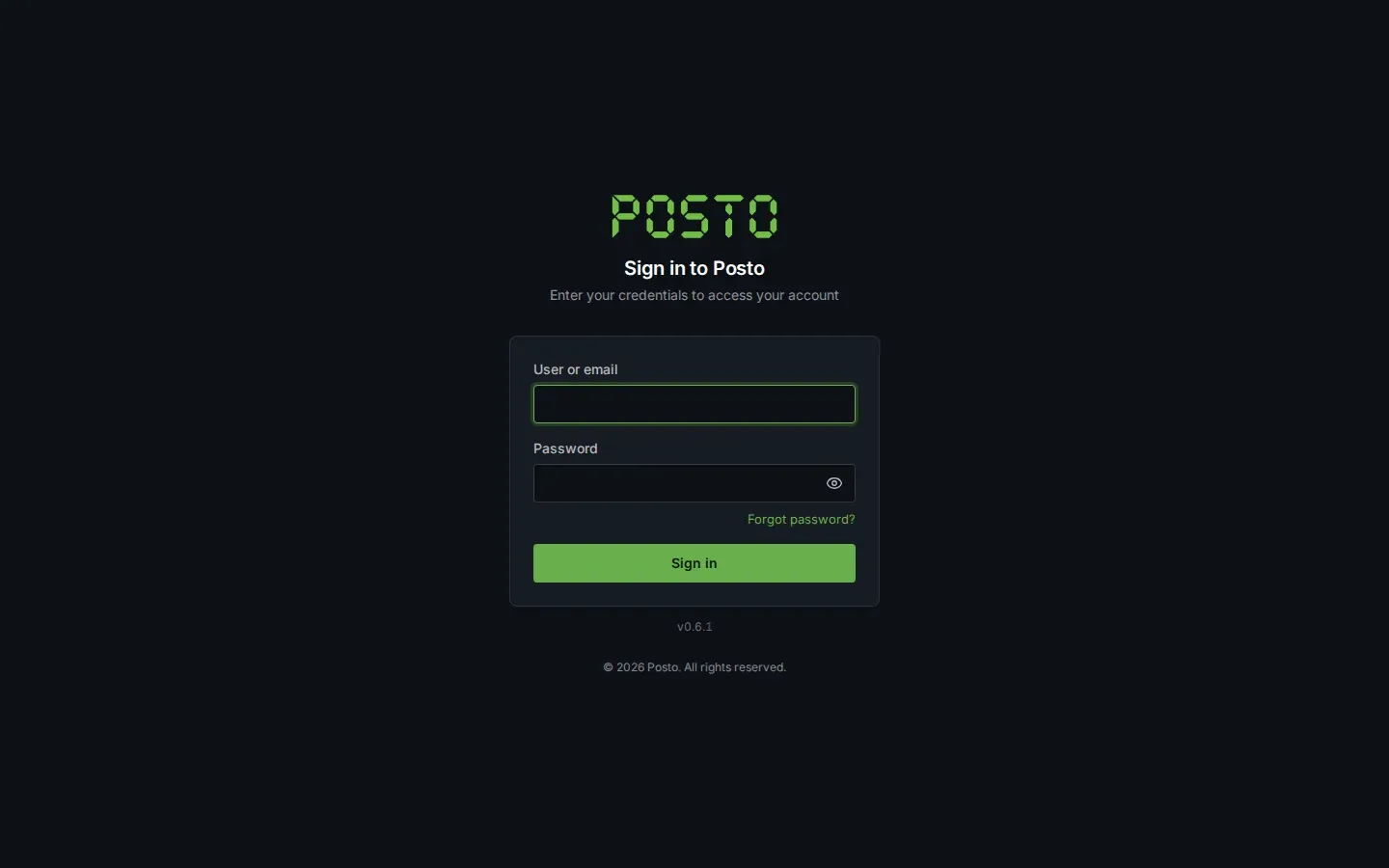
What you see next: Posto opens the company that you worked in last time. If Posto does not know that company, it asks you which company to open. If you work in only one company, it opens at once.
Common problems:
- You forgot your password: click Forgot password? under the fields.
- To show the password as you type it, click the eye in the Password field.
Choose the company
Section titled “Choose the company”If you work in more than one company, you change the company in the top bar.
- Look at the top bar, right of the logo. It shows Company and the name of the company.
- Click the name of the company.
- Choose the company in the list. With more than 10 companies, the list has a search field.
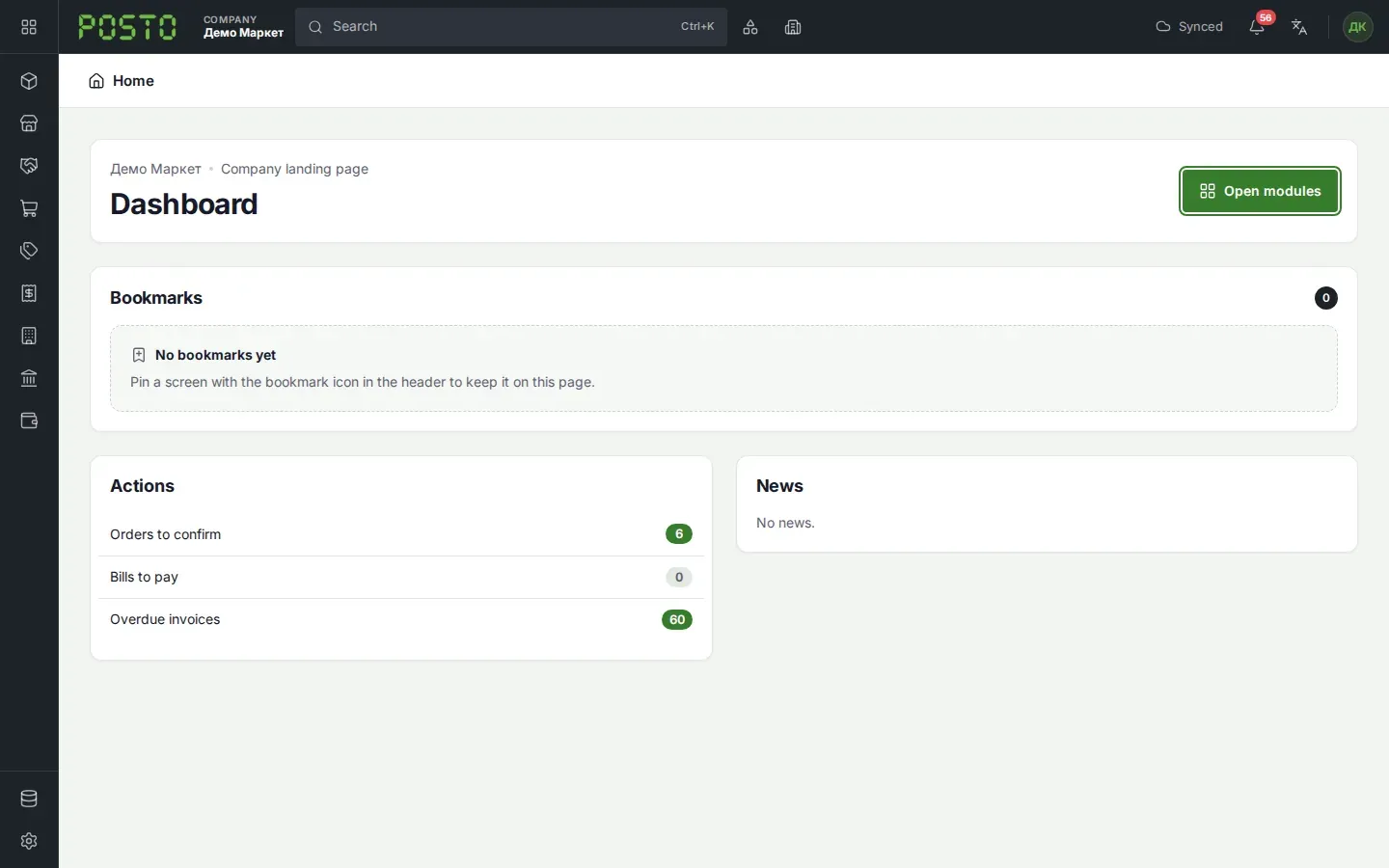
What you see next: Posto opens the Dashboard of that company. The name of the company is in the top bar.
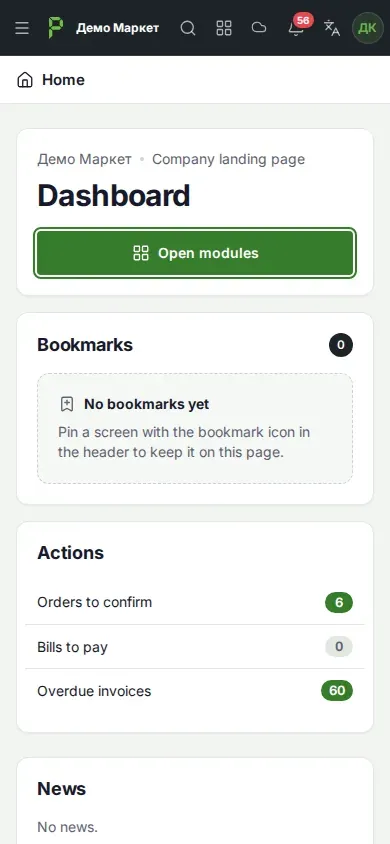
On a phone, the top bar shows “P” instead of the logo. This gives space for the full name of the company.
Change the language
Section titled “Change the language”Posto speaks Macedonian, English and Albanian.
- In the top bar, click the Language button (the sign with letters, left of your initials).
- Choose Македонски, English or Shqip.
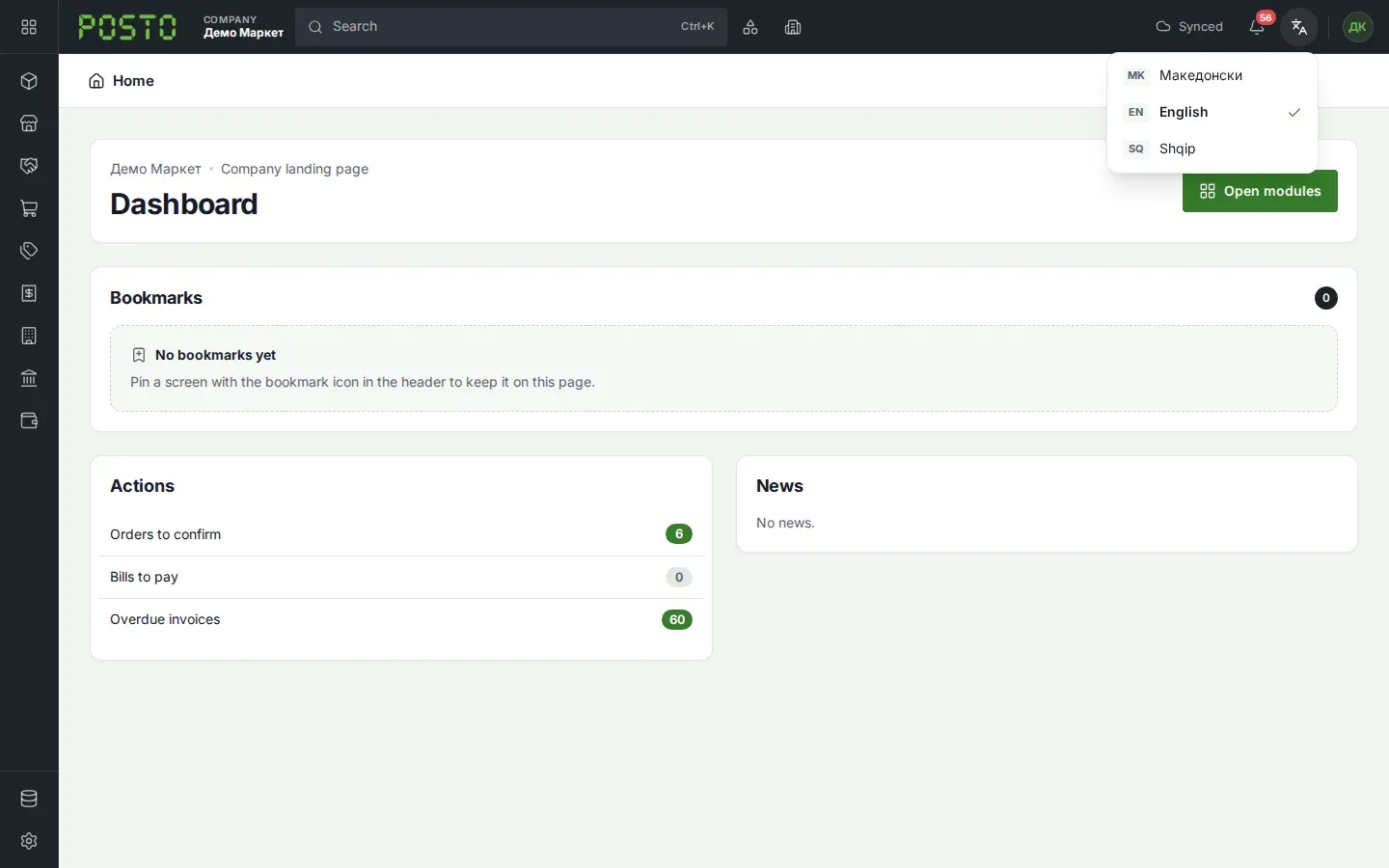
What you see next: the screen changes to that language at once. Posto keeps your choice on this computer.
Common problems: the names of items, partners and storages do not change. They stay as they were typed in.
Company details
Section titled “Company details”The Company screen holds the main details of your company. The name of the company is at the top of each PDF document.
What you need: the details of the company (name, tax number, address). The owner and the administrator can always open this screen. Other users can open it only if their access role lets them.
- In the left menu, open System.
- Click Company.
- Fill in Name and Full name.
- Type the Tax number and the Registration number.
- Type the Address, Email and Phone.
- Check the Time zone. For North Macedonia it is “Europe/Skopje”.
- Click Save.
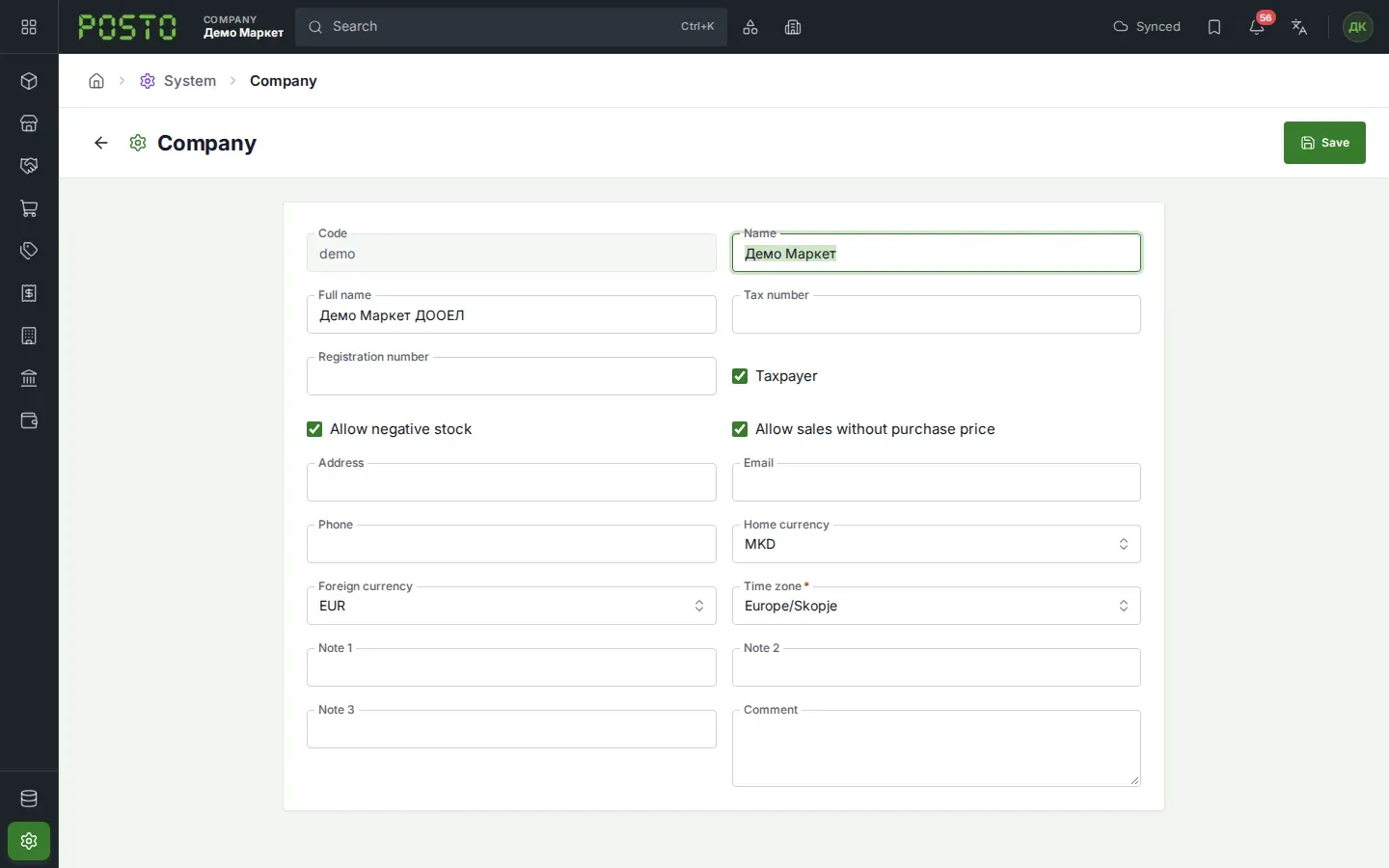
What you see next: the new details stay on the Company screen.
Common problems: you cannot change the Code field. It is the short mark of the company.
Add a user
Section titled “Add a user”Each person who works in the company has their own user.
What you need: the role Owner or Administrator, or an access role that allows Users.
- In the left menu, open System.
- Click Users.
- Click New.
- If the person already has a Posto user, type their e-mail in the Email field. Posto adds that user to the company.
- If the person has no user, fill in Username, Name and Password. The e-mail is not required.
- In Role, choose User or Administrator.
- If necessary, select Access roles.
- If the user works only in some storages, select them under Storages.
- Click Save.
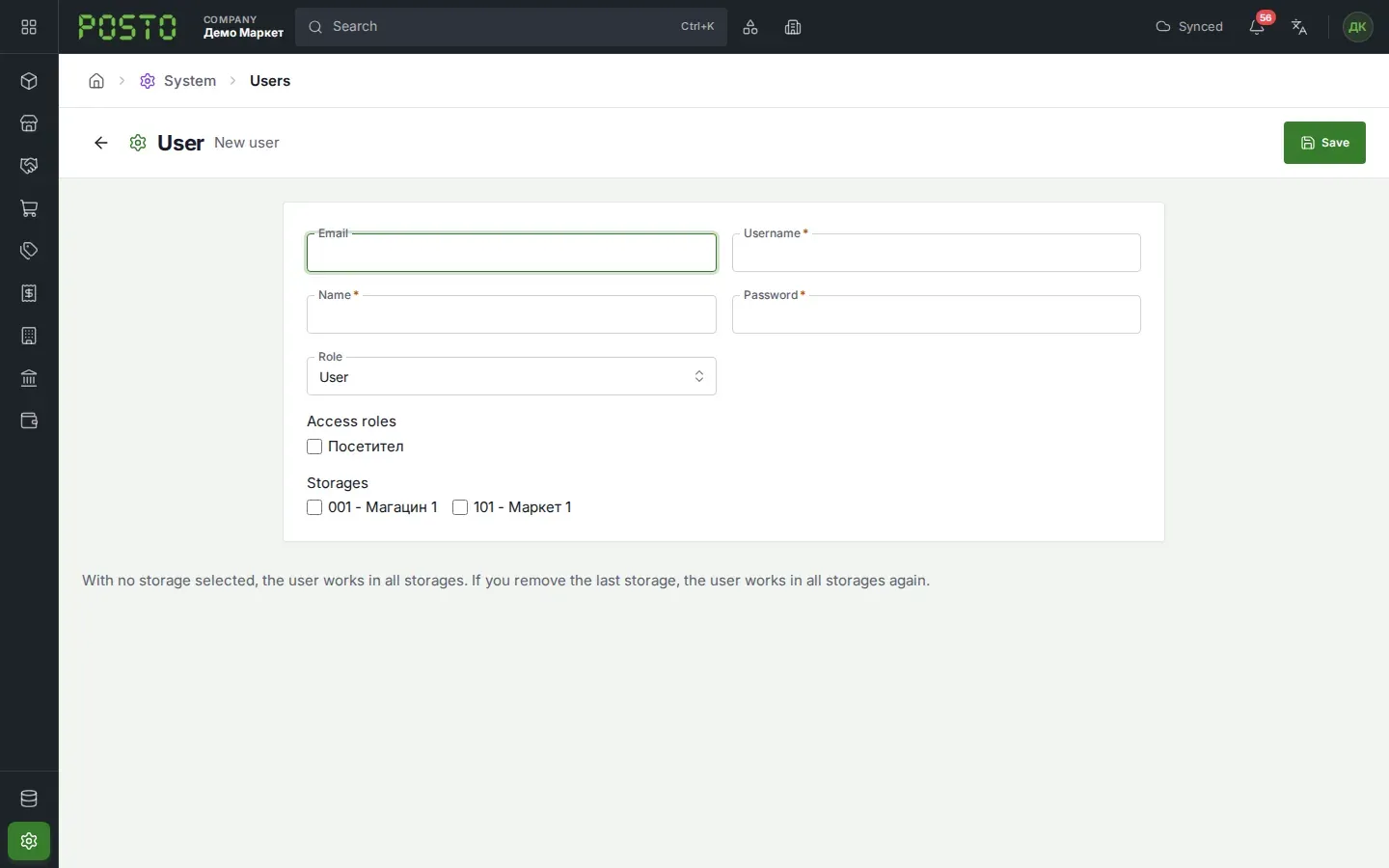
What you see next: the new user is in the Users list. They sign in with their username and password.
Common problems:
- With no storage selected, the user works in all storages.
- In the demo company, Posto does not let you add a user. The message is “This is not allowed in the demo version.”
Light or dark theme
Section titled “Light or dark theme”- Click your initials at the top right.
- Under Theme, choose Automatic, Light or Dark.