
Inventory
In the Inventory module you keep the items, the storages and the stock: how many goods you have and where they are.
An item is each product or service that you buy or sell.
- Open Inventory, then Items.
- Click New.
- Posto gives a Code. You can change it.
- Type the Name.
- In Type, choose Product or Service.
- Choose the VAT and the Unit.
- If the item has a barcode, type it in Barcode.
- Under Pricing, type the Price excl. VAT or the Price incl. VAT, and the Purchase price.
- Click Save.
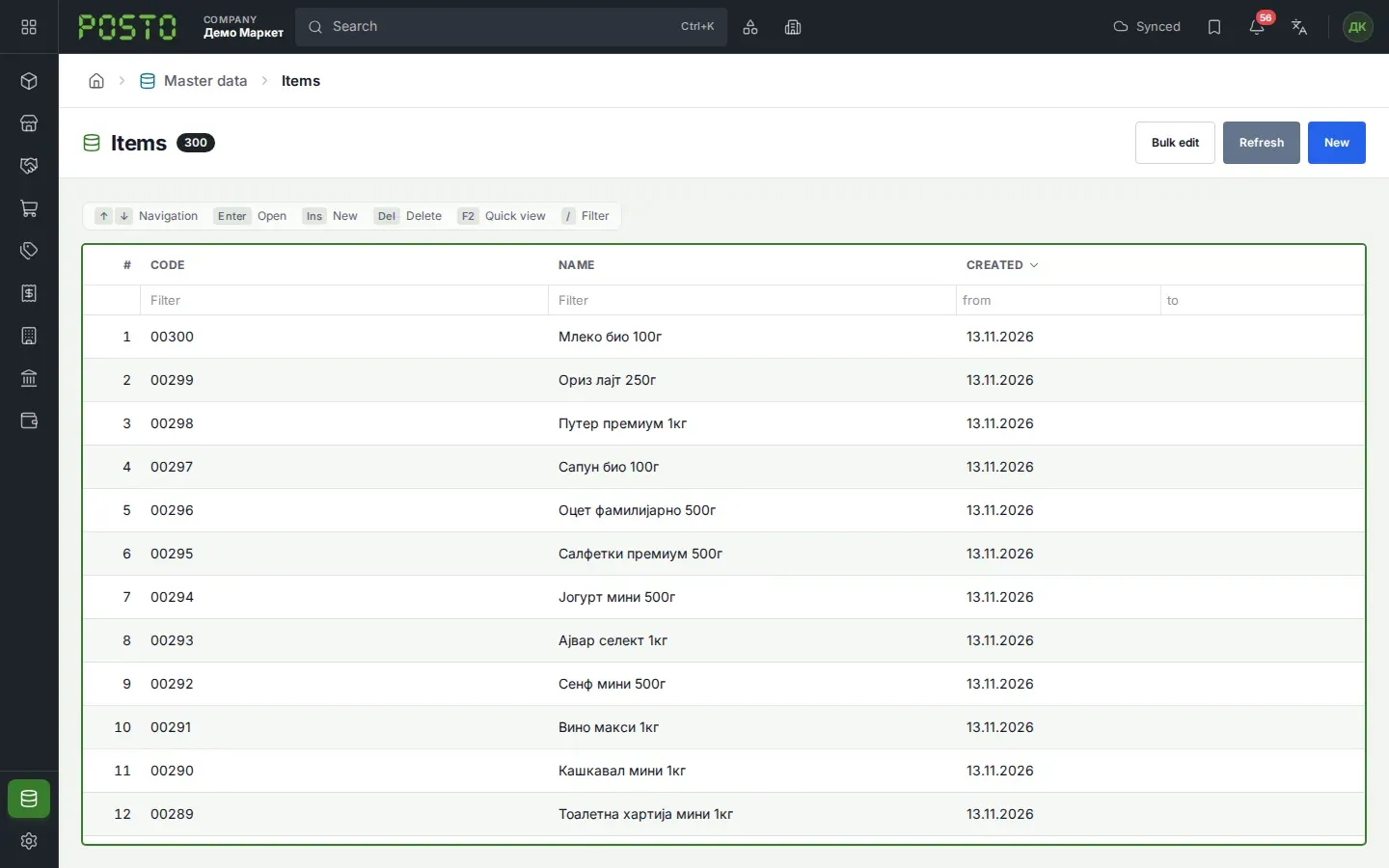
What you see next: the item is in the Items list. Now you can choose it in the lines of documents.
Storages
Section titled “Storages”A storage is each place where goods are kept: a warehouse or a shop.
- Open Inventory, then Storages.
- The Type column shows if the storage is for wholesale or for retail.
The demo company has two storages: “Магацин 1” for wholesale and “Маркет 1” for retail.
Transfer
Section titled “Transfer”With a transfer, goods go from one storage to another.
- Open Inventory, then Transfers.
- Click New.
- In From, choose the storage that the goods leave. Posto shows only the storages that you work in.
- In To, choose the storage that the goods go to.
- With New line, add the items and the quantities.
- Click Save, then Confirm.
- Click Convert, then Goods issue, then Convert and open.
- Confirm the goods issue. Now the goods are on the way.
- When the goods arrive, open the transfer again.
- Click Convert, then Goods receipt, then Convert and open.
- Confirm the goods receipt.
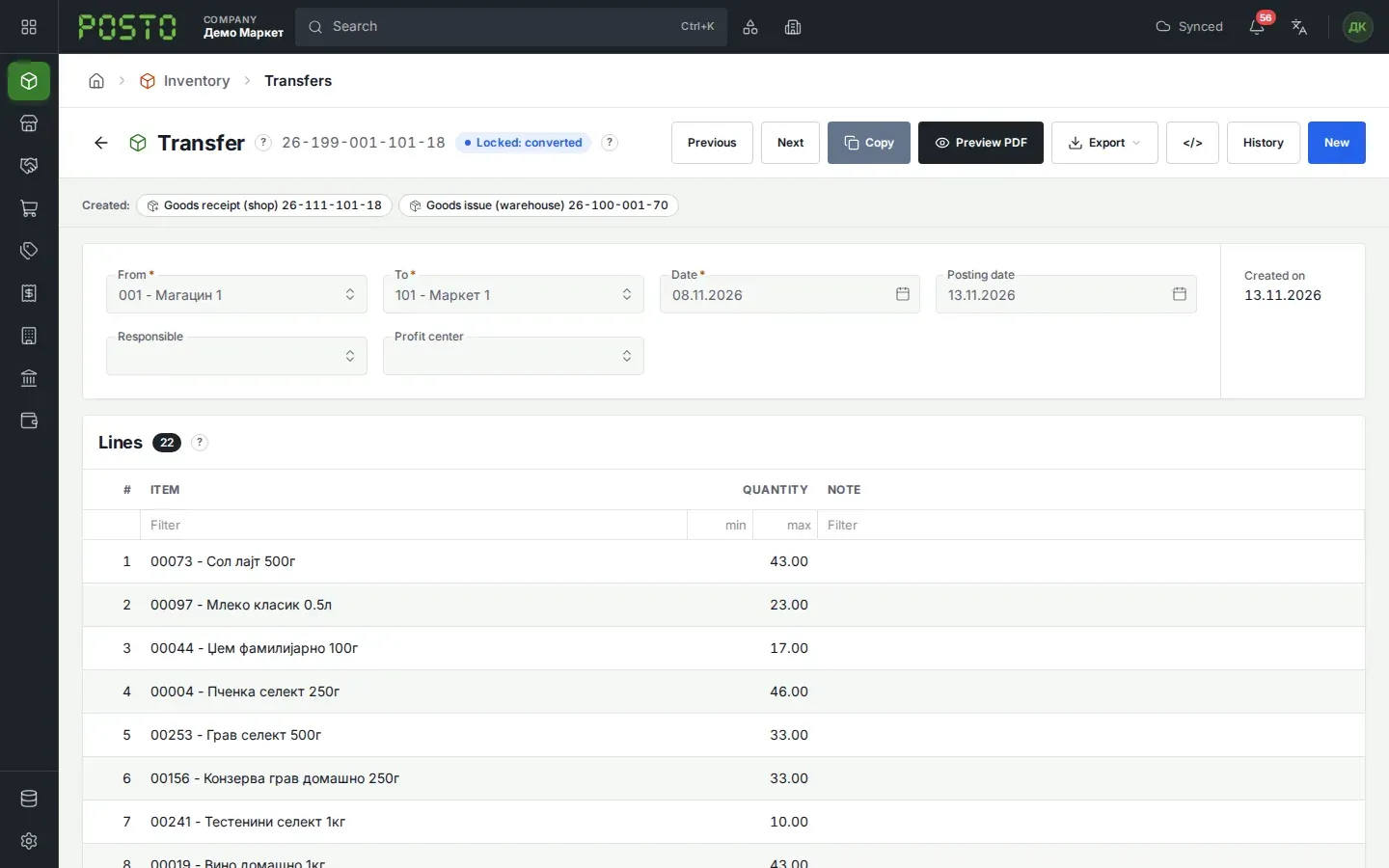
What you see next: in the Transfers list, the status is Completed. The Created: strip shows the goods issue and the goods receipt.
Common problems: goods that left one storage but did not arrive yet are in the Transit report. During that time, the transfer has the status In transit in the list.
Stock count
Section titled “Stock count”With a stock count, you type in the stock that you really counted. Posto then corrects the stock.
- Open Inventory, then Stock counts.
- Click New.
- Choose the Storage that you count.
- With New line, add each item that you counted and type the counted Quantity.
- Click Save, then Confirm.
What you see next: the stock count is Locked: converted. The Created: strip shows a Stock adjustment. It puts in the differences between the count and the stock.
Common problems: a line with no quantity counts as 0. Before you click Confirm, make sure that each line has a quantity.