
A day at the till
This is one work day at the till in the shop, from the start of the day to the Z report. The till is a separate program, Posto ПОС, connected to the fiscal printer.
What you need:
- The till is set up on the computer. The administrator does this once: the company, the till and the fiscal printer.
- You are a cashier of that till and you have a PIN.
Each button on the till also shows its key, for example F2. You can use the mouse, touch or the keyboard.
Unlock the till
Section titled “Unlock the till”- On the Касиери на овој уред screen (cashiers of this device), choose your name.
- Type your PIN and press OK or Enter.
The first time, the cashier clicks Најава на касиер (cashier sign-in). The cashier signs in on the web page that opens and sets a PIN of 4 to 6 digits.
Common problems:
- After 5 wrong PIN attempts, the till removes your data from the computer. Sign in again with Најава на касиер.
- The till locks after 5 minutes with no work. You can lock it with Заклучи (lock, F12).
Start of day
Section titled “Start of day”Before the first sale, you start the day and type the cash that is in the till.
- If the day is not started, the till opens the Почеток на ден window (start of day). If you do not see it, press F7 or the Ден (day) button in the top bar.
- Count the cash in the till.
- Type the amount.
- Press Започни ден (start day) or Enter.
What you see next: the message “Денот започна со … во касата.” (the day started with … in the till). Now you can sell.
- Scan the barcode of the item. Or type the name or the code in the Скенирај или барај артикл … field (scan or search item) and choose the item.
- The item is in the basket. With Повеќе (more) and Помалку (fewer) you change the quantity. With Избриши ставка (delete line) you remove the line.
- Add all the items.
Common problems:
- “Нема артикл со шифра …” (no item with code …): no item has that barcode. Search for the item by its name.
- “Нема доволно залиха …” (not enough stock): the item is not in stock.
- Нова (new, F6) starts the sale again.
Payment
Section titled “Payment”- Press Плаќање (payment, F2).
- Choose the payment method: Готовина (cash, F5) or Картичка (card, F8).
- For cash, type how much money the buyer gave you. Точно (exact) types the exact amount.
- Press Фискализирај (fiscalize) or Enter.
What you see next: the printer prints the fiscal receipt. The message is “Сметка бр. … е фискализирана. Кусур …” (receipt no. … is fiscalized, change …). The change is in the window under Кусур (change).
The buyer can pay in two ways. Type the first amount, for example the cash, and press Enter. Then choose Картичка (card) for the rest.
Common problems: if the printer refuses or does not answer, the basket and the payments stay. Check the printer and try again with F2 and Enter.
Storno
Section titled “Storno”A storno gives the whole receipt back to the buyer.
- For the last receipt, press Сторно (storno, F4). For another receipt, press Сметки (receipts, F3), choose the receipt, then press F4.
- The till shows the Сторно на сметка бр. … window (storno of receipt no. …) with the lines.
- If the buyer gives back everything, press Печати сторно (print storno).
- If the buyer keeps some lines, make them smaller with −. Then press Сторно и заменска (storno and replacement).
What you see next: the printer prints the storno. If the buyer keeps some lines, these lines go into a new replacement receipt at the old prices. Take the payment for it with F2.
Common problems:
- You cannot do a storno of a storno receipt.
- You cannot do a storno of a receipt again.
Cash in and cash out
Section titled “Cash in and cash out”When you put money into the till or take money out of it, you record it.
- To put money in, press F7 (Внеси, put in). To take money out, press F8 (Изнеси, take out). The same buttons are in the Ден (day) menu.
- Type the amount in Износ (amount).
- If you want, write a note.
- Press Внеси or Изнеси.
What you see next: the message “Внесени … во касата.” (… put into the till) or “Изнесени … од касата.” (… taken out of the till).
Common problems: you cannot take out more than there is in the till.
End of day with the Z report
Section titled “End of day with the Z report”At the end of the day, you count the money and print the Z report. The Z report closes the day on the printer.
- Press Крај на ден (end of day, F9).
- For each payment method, type the amount that you counted in the Избројано column (counted). The Очекувано column (expected) shows how much there should be.
- Check the Разлика column (difference).
- Press Печати Z извештај (print Z report) or Enter.
- If there is a difference, the till tells you. Check the amounts. If they are correct, press Enter again for a Z report with the difference.
What you see next: the printer prints the Z report. The message is “Z извештај бр. …: вкупно … Денот е затворен.” (Z report no. …, total …, the day is closed). The till then shows Почеток на ден (start of day) for the next day.
Common problems: after the Z report, you cannot sell until you start a new day.
The day of the till in Posto
Section titled “The day of the till in Posto”In Posto, in the Retail module:
- Bills shows the receipts from the till.
- End of day reports shows the end of each day, with the expected and the counted amounts for each payment method.
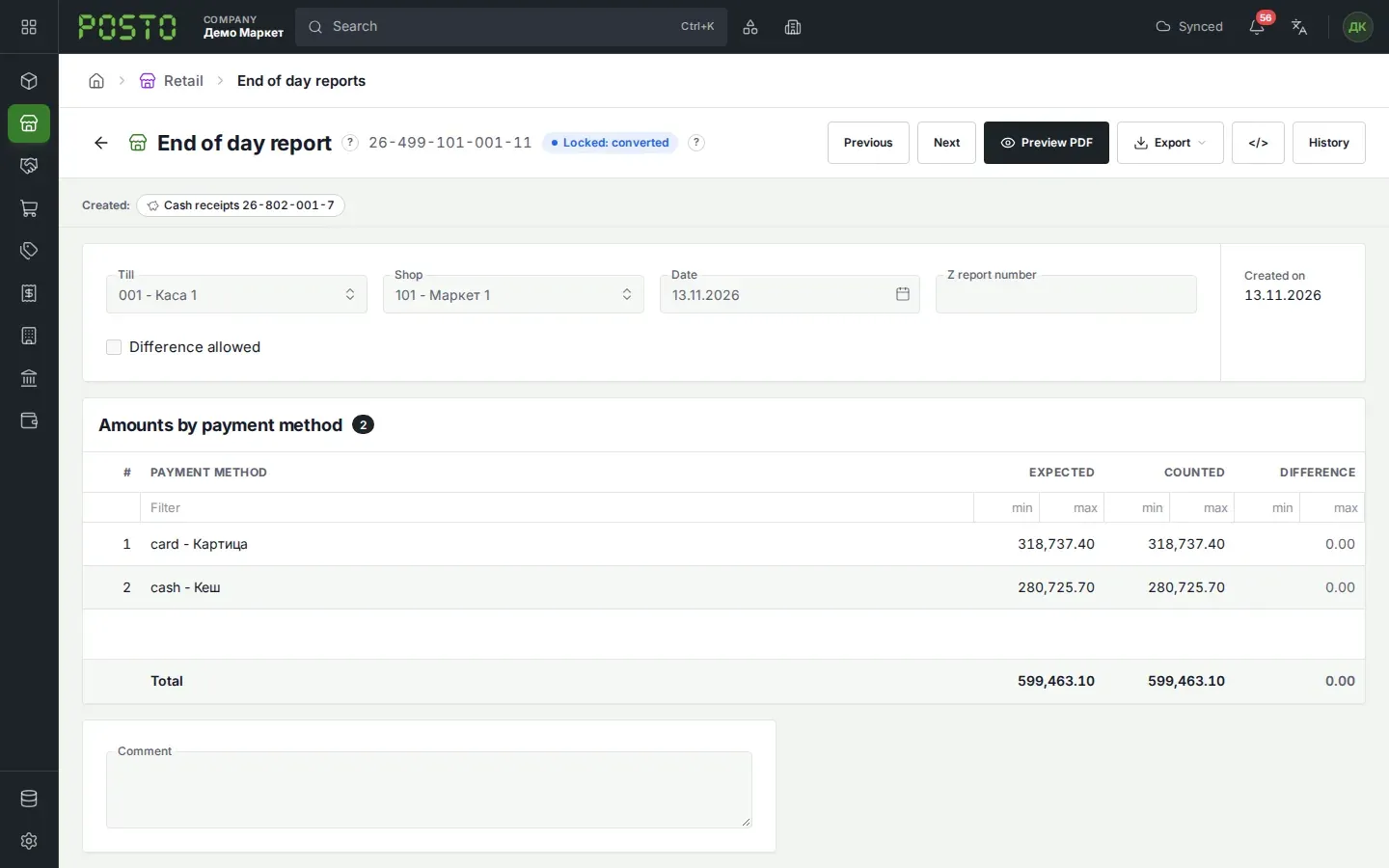
When you confirm the end of day report, Posto makes a cash receipt for the cash register. See Cash book.